
Grok Imagine Image 2.0 prompts work best as a visual brief: subject, composition, lighting, style, and exact text. Grok Imagine Video 2.0 prompts need a shot brief: action, camera movement, pacing, sound, and continuity. Use the templates below to turn a broad idea into instructions you can revise one detail at a time.
This Grok Imagine Image 2.0 and Grok Imagine Video 2.0 prompt guide covers product photos, posters, illustrations, cinematic scenes, and short videos. Jump to Grok Imagine Image 2.0 prompts or Grok Imagine Video 2.0 prompts.
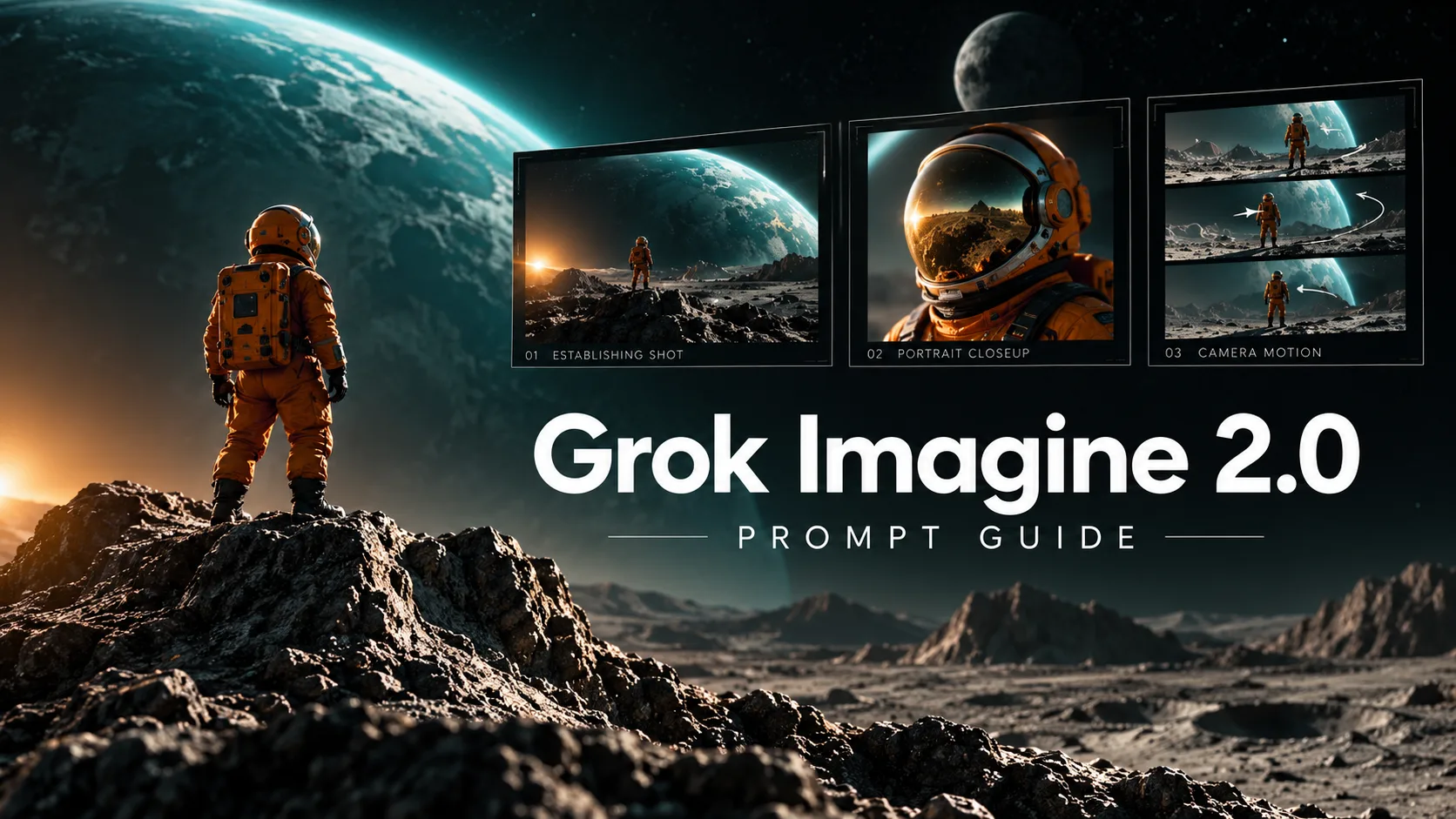
Grok Imagine Image 2.0 Prompt Guide
Build a Grok Imagine Image 2.0 prompt around six decisions: subject, setting, composition, lighting, style, and constraints. If you need text in the image, add the exact wording and its position. You do not need to fill every slot; keep the details that determine whether the image works for its intended use.
Grok Imagine Image 2.0 prompt template
Replace the bracketed phrases with concrete details and remove any line that does not matter for your image.
Create [type of image] for [intended use].
Subject: [main subject, appearance, materials, and pose].
Setting: [location and relevant background details].
Composition: [shot size, viewpoint, subject placement, and empty space].
Lighting and style: [light direction, mood, palette, and medium].
Text: [exact wording and where it belongs, if needed].
Constraints: [the few details that must be present or preserved].
For example, “cinematic coffee ad” leaves most decisions open. “A matte cream coffee cup on a walnut counter, close-up at counter height, steam visible against a dark background, soft window light from the left, empty space above for a headline” gives you specific choices to inspect in the result.
Describe what the camera should see
In a Grok Imagine Image 2.0 prompt, words such as “beautiful,” “premium,” and “epic” describe a reaction. Add visible details that could produce it: rough ceramic glaze, a low viewpoint, a single rim light, muted colors, or a large subject surrounded by empty space.
Pick one main subject and make its relationship to the background clear. If the scene contains several objects, specify their positions: a notebook in front of the cup, a lamp behind it, and a window on the left. Avoid asking for both an extreme close-up and a full-body view in the same composition.
Separate the prompt from output settings
In the API, aspect ratio, resolution, and quality have their own fields. The Grok Imagine Image 2.0 API provides aspect_ratio, resolution, and the 2.0-only quality values low, medium, and auto. Choose settings through the controls your interface exposes. Typing “8K” into a prompt is not a substitute for selecting an output resolution.
Grok Imagine Image 2.0 prompt examples
Adapt the subject and setting in these Grok Imagine Image 2.0 prompt examples while keeping the composition instructions. Each prompt gives you a specific feature to check in the result.
1. Product photography with room for copy
Create an editorial product photograph of a matte ivory ceramic coffee cup on a walnut tabletop. A thin curl of steam rises from the cup. Place the cup in the lower-right third of the frame and leave the upper-left area uncluttered for ad copy. Soft morning window light enters from the left, with gentle shadows and visible ceramic texture. Warm neutral palette, realistic materials, quiet cafe atmosphere. Keep the cup unbranded and do not add text.This brief separates subject, placement, texture, and lighting. If the composition works but the surface looks too glossy, revise the material instruction first.
2. A poster with exact lettering
Design a portrait concert poster for a fictional synthwave event. Show a small silhouette walking toward a magenta sun over a dark blue geometric landscape. Put the exact headline "MIDNIGHT SIGNAL" at the top in large, readable retro lettering. Below the illustration, place the exact line "FRIDAY · 8 PM" in smaller white type. Use a clear hierarchy, generous margins, and strong contrast. Include only those two lines of text.For a lettering request, give the exact words, their placement, and relative size. Check every character in the output, especially small print. If one word is wrong, correct that text layer rather than rebuilding the entire poster.
3. An illustration with a consistent visual direction
Create a watercolor storybook illustration of an adult traveler in a rust-red coat crossing a small stone bridge. A canvas satchel hangs at their side. The bridge spans a quiet stream beside a misty pine forest. Wide view at eye level, traveler centered beneath an arch of branches. Soft overcast daylight, muted greens and warm red accents, visible paper grain and delicate watercolor edges. Keep the background simple and include no lettering.For a series, keep a short reusable description of the character, clothing, props, and visual style. Use an accepted image as a reference when the workflow supports it, and inspect each new result for drift.
Grok Imagine Image 2.0 editing prompts
For Grok Imagine Image 2.0 editing, use an accepted image as the source for the next edit. Name the change first, then the details that should stay: shape, color, pose, framing, lettering, or lighting. This keeps each revision focused on a visible problem.
Change a background
Replace the background with a softly lit cream studio wall and a pale stone surface. Preserve the coffee cup's shape, handle, color, position, and visible details. Keep the original camera angle. Adjust the contact shadow so the cup sits naturally on the new surface. Add no props or text.Repair lettering
Correct only the top headline to read exactly "MIDNIGHT SIGNAL". Keep its position, color, and retro lettering style. Preserve the illustration, background, margins, and the bottom line "FRIDAY · 8 PM".Review the whole image after an edit. If another detail changes, return to the last accepted version and narrow the request. Preserve useful intermediate images instead of repeatedly editing a result that has already drifted.
Assign a role to each reference image
When using multiple images, make their roles explicit. For example: “Use image 1 for the cup's shape and surface details, and image 2 for the background palette and lighting. Show only the cup from image 1.” This gives you a clearer target than “combine these images.” Specify the role of every input instead of leaving the model to decide which details to borrow.
Troubleshooting Grok Imagine Image 2.0 prompts
| Problem | What to change |
|---|---|
| The result feels generic | Replace broad adjectives with materials, light direction, and framing. |
| The scene is crowded | Remove secondary props and identify the main subject. |
| The crop is unsuitable | Choose the intended aspect ratio and specify subject placement. |
| Lettering is wrong | Quote the exact words and request a focused correction. |
| An edit changes the subject | Name the features to preserve and restart from the last accepted image. |
Compare versions after changing one variable. If you alter lighting, framing, and style together, you lose the chance to learn which revision helped. Explore Grok Imagine Image 2.0 to try an image brief.
Grok Imagine Video 2.0 Prompt Guide
Write a Grok Imagine Video 2.0 prompt as a short shot brief: subject and scene → action → camera → pacing → sound → continuity. An image prompt describes a moment; a video prompt needs a beginning, a visible change, and an ending.
The Grok Imagine Video 2.0 prompting framework below adapts earlier Grok Imagine video guidance on motion, camera moves, pacing, and sound design. The sources and model-version scope are explained at the end of this guide.
Grok Imagine Video 2.0 prompt template
Scene: [subject, location, and initial framing].
Action: [what happens first, then what happens next].
Camera: [one primary move, its direction, and what it reveals].
Pacing: [how quickly the action unfolds and how the shot ends].
Sound: [ambient sound, effects, music, or exact dialogue].
Continuity: [appearance, objects, and lighting to preserve].
Use full sentences or short labeled lines. The labels organize your brief; they are not special commands. Set duration and aspect ratio in the available controls, then fit the action to that clip length.
Grok Imagine Video 2.0 text-to-video prompts
For Grok Imagine Video 2.0 text-to-video, a weak brief is “epic sci-fi farmer, cinematic, ultra-realistic.” It specifies a mood but leaves the movement open. A more useful brief gives the farmer a path, the camera a position, and the background a role:
A farmer in a weathered work jacket rides a low hovering utility vehicle along a narrow path through a vast cornfield at sunrise. The vehicle advances steadily, bending the nearby corn leaves in its wake. Colossal agricultural machines walk slowly beyond the field. The camera tracks beside the farmer at waist height, keeping the vehicle in the foreground and the machines visible behind it. Warm low sunlight, realistic dust and metal surfaces. End with the farmer still moving along the same path. Sound: a low engine hum, rustling corn leaves, and distant mechanical footsteps.The foreground action is easy to follow, while the slower background movement establishes scale. This is an original prompt adaptation; the library clip below is a separate community example.
Grok Imagine Video 2.0 image-to-video prompts
For a Grok Imagine Video 2.0 image-to-video prompt, concentrate on the animation when the source image already establishes the cup, tabletop, and light. Give moving details an action and stationary details a clear instruction to remain still.
Animate the supplied coffee-cup image as one continuous shot. The cup remains still while a thin curl of steam rises slowly. The camera makes a gentle push-in toward the cup, ending on a closer view of the rim and steam. Preserve the cup's shape, tabletop, warm window light, and color palette. Keep the background stable, with no cuts and no new objects. Sound: quiet cafe room tone and a faint distant ceramic clink, without dialogue or music.The steam provides subject movement, and the push-in changes the framing. If you want an ambient loop instead, change the camera line to “Locked-off camera; identical framing throughout.” Check the first and last frames before calling the result seamless.
Choose a camera move for a purpose
| Camera direction | What it emphasizes | Copyable instruction |
|---|---|---|
| Slow push-in | A face, product detail, or emotional beat | “Move slowly closer to the cup, ending on the rim and rising steam.” |
| Side tracking | A subject traveling through a location | “Track beside the cyclist, keeping the same distance and height.” |
| Gentle orbit | A product's shape or a spatial reveal | “Arc gently around the case from a front view to a three-quarter view.” |
| Locked-off shot | Small movements in a stable composition | “Keep the camera fixed while rain runs down the window.” |
Keep the camera instruction in your Grok Imagine Video 2.0 prompt specific. Instead of “dynamic cinematic camera,” specify the direction, speed, and ending view. If the camera distracts from the action, remove its movement and test the subject motion alone.
Write action in the order it should happen
Use a small number of beats: an object opens, a person reacts, then the shot settles. Avoid packing a short clip with a new location, costume change, aerial reveal, and close-up. For a longer scene, generate separate shots with matching character and setting descriptions, then assemble them.
Here is a Grok Imagine Video 2.0 product reveal prompt with a clear sequence:
A matte black earbud case rests closed on a dark stone surface. Begin with a close three-quarter view. The lid opens slowly, revealing two earbuds inside, then holds fully open. The camera makes a gentle push-in and settles on the earbuds for the final beat. Soft side lighting traces the case edges; the background remains dark and uncluttered. Preserve the case geometry and keep both earbuds seated. Sound: a small hinge click followed by quiet room tone.Timing words such as “slowly,” “then,” and “holds” express the intended rhythm. Timestamped beats can organize a complicated brief, but inspect the result rather than assuming exact timing is guaranteed.
Audio and dialogue in Grok Imagine Video 2.0 prompts
Describe the sound you want the viewer to hear: engine hum, footsteps on gravel, leaves moving, or a short spoken line. For dialogue, name the speaker, quote the words, and specify delivery. Keep the line short enough for the chosen clip length.
An adult shop owner stands behind a pottery counter, holding one cream ceramic cup at chest height. Medium shot with a fixed camera. She looks toward the viewer, smiles gently, and says in a relaxed voice: "Made by hand, for your everyday coffee." After speaking, she lowers the cup slightly and holds her smile. Soft daylight and natural gestures. Sound: her voice over quiet shop ambience, without background music. Preserve her appearance and the cup's shape throughout.Use audio directions with a workflow that supports generated audio. Review speech, mouth movement, and sound balance separately; if a spoken line is essential, leave time for a clean delivery.
Watch a community scene example
A farmer, a hovering vehicle, a cornfield, and oversized machines create a recognizable scene before any elaborate style wording. Use this community example to study subject placement and scale.
Notice how a specific vehicle, landscape, and background scale establish the scene. For your own motion brief, add the action and camera behavior you want to see. Browse more Grok Imagine Video 2.0 prompt examples when you need ideas for subjects and scenes.
Troubleshooting Grok Imagine Video 2.0 prompts
| Problem | What to change |
|---|---|
| Too little happens | Add an observable action: the lid opens, steam rises, or the rider passes a landmark. |
| Movement is chaotic | Keep one subject action and one primary camera move. |
| The subject changes appearance | Reuse the accepted starting frame and specify clothing, shape, or props to preserve. |
| The camera zooms when you want a still shot | Request a fixed camera and describe only the subject or environmental movement. |
| Dialogue feels rushed | Shorten the line and leave a final pause. |
| The ending feels abrupt | State the final position or a brief hold. |
Review the clip in three passes: action and continuity, camera and framing, then sound. Revise the instruction responsible for the weakest part while keeping the rest of the brief stable.
Sources and scope
The Grok Imagine Image 2.0 advice draws on the Image 2.0 release and official image workflows. The Grok Imagine Video 2.0 advice adapts earlier Grok Imagine guidance and examples about camera movement, pacing, sound design, and animating a starting frame. The templates, camera table, action sequences, and troubleshooting suggestions are our editorial synthesis; the copyable examples are not benchmark-tested outputs.
Grok Imagine Image 2.0 is an officially documented image model. We use Grok Imagine Video 2.0 as the video topic name used on Gvid; the linked official video references describe earlier or separately named models. The video recommendations are extrapolated prompting advice, not confirmation of a Video 2.0 API model or its specifications.
Official references, reviewed October 4, 2026:
- Imagine Image 2.0 announcement: image generation, typography, and editing.
- Image Generation: image configuration and examples.
- Image Editing: source-image edits and iterative refinement.
- Multi-Image Editing: working with several reference images.
- Grok Imagine 1.5 Preview: earlier guidance on camera moves, pacing, sound design, and shot sequences.
- Create Short Videos From Prompts: subject, action, camera, and mood in a video brief.
- Video Generation: current request modes and video examples.
- Image-to-Video: animation from a starting image.