
A Grok Imagine session can produce several useful images and videos before you choose a final shot. Downloading them individually leaves another job: remembering which prompt belongs to each file. Imagine Downloader is an unofficial browser extension built around that problem. Its author describes saving an entire Imagine conversation, with prompt files beside the media, into one folder.
On October 17, 2026, Nate, posting as 0xSpotts, introduced the extension. We reviewed the author's website and downloaded version 1.0.0 to inspect its manifest, popup markup and download handling. We did not install it or run it against a signed-in Grok account. The steps below describe the author's instructions and controls present in that package; they are not a tested export tutorial or a guarantee of complete downloads.
What does a thread download include?
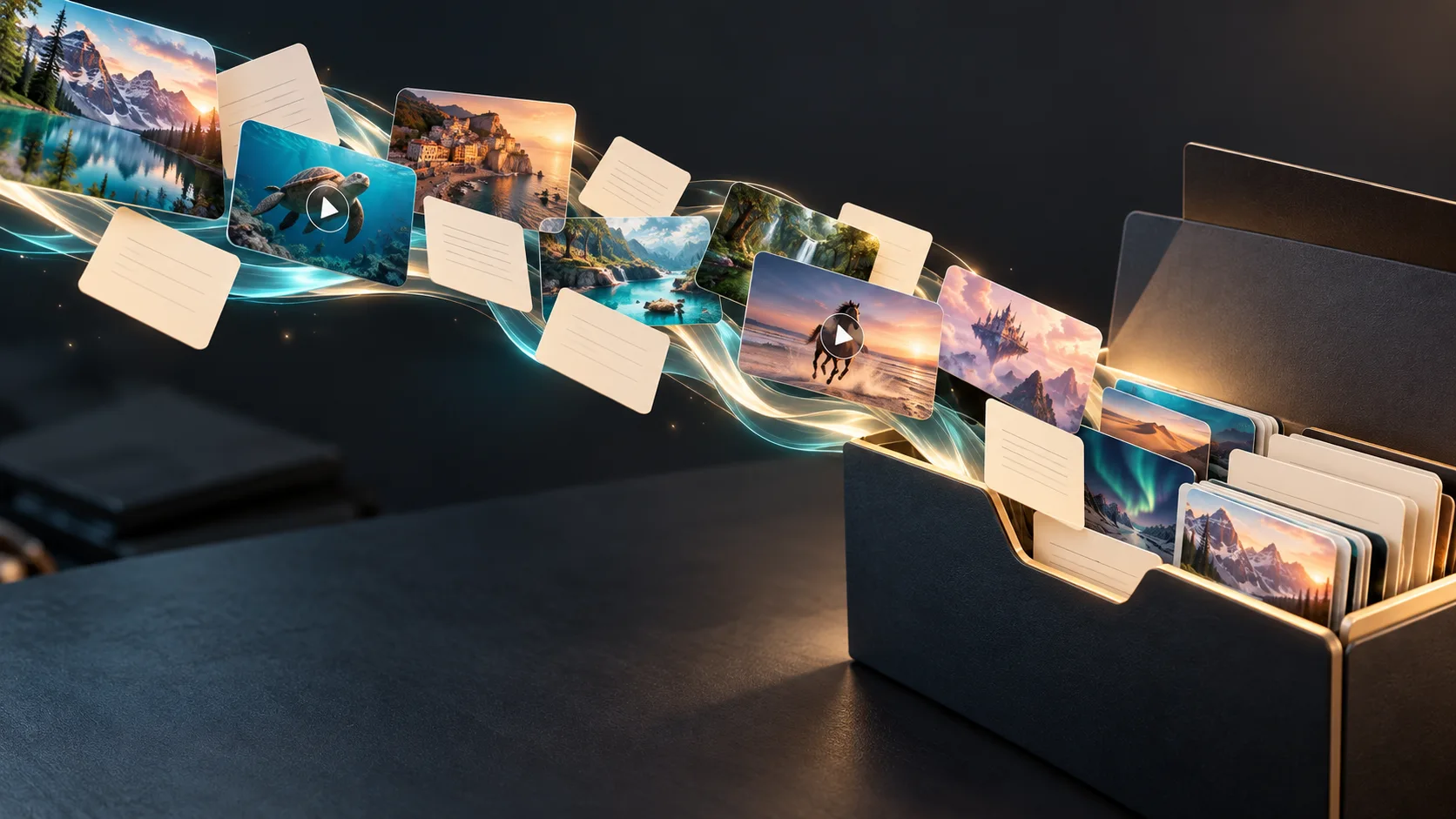
The website describes collecting images and videos from the conversation you open, rather than downloading an entire feed. It also describes matching Markdown files containing prompts and an index.md that brings the prompts together. That makes the intended unit of export a creative thread, not every generation in an account.
The package's popup includes Download this thread, Save this post’s prompt (.md), and a Save prompts as .md option. It offers media modes that either skip or include video posters. A poster is a still associated with a video; including posters does not mean you receive an additional generated video.
For someone developing variations of one scene, the distinction matters. A folder containing both the selected clip and its earlier attempts can document the choices behind an edit. A prompt sidecar helps preserve the written instruction alongside the result. It does not, by itself, prove that every setting, reference asset, seed or internal model version needed to reproduce a generation has been exported.
How does installation work?
At review time, the website's Chrome Web Store link was marked coming soon. The available distribution was a ZIP file. The author's installation instructions are:
- Download the ZIP from the Imagine Downloader website and extract it.
- Open
chrome://extensionsin Chrome oredge://extensionsin Edge. - Enable Developer mode and choose Load unpacked.
- Select the extracted extension folder.
These are the developer's instructions, which we have not executed. The downloaded manifest identifies a Manifest V3 extension named Imagine Downloader, version 1.0.0. It declares activeTab, scripting, downloads and storage permissions, plus host access for grok.com and its subdomains. The website calls the tool independent and unofficial; installing it does not add an official Grok feature or enable a Gvid export integration.
Open a conversation before exporting
The author directs users to open a Grok Imagine post while signed in, then click Download this thread. The popup's initial status text specifically refers to a post with a ?conversation=… URL parameter. Start from the conversation containing the generations you want, rather than assuming a gallery or feed view represents that same thread.
Before a first export, decide whether you need video posters and keep the prompt option enabled if your aim is an archive of creative decisions. The popup also contains Visit posts for missing prompts, described there as an in-thread, read-only operation. Its presence indicates that collecting media and finding their prompts are separate concerns; a downloaded file should not be taken as proof that its matching prompt was captured.
The website says the popup can be closed while the job runs. The package also exposes a status area, Stop, Scan only, Force reset, and a debug JSON option. We confirmed those controls exist in the markup, but have not verified their behavior during a long thread or an interrupted job.
Where do the files go?
The documented destination is your browser's Downloads folder, under GrokImagine, with one subfolder per thread. The author describes a folder name based on the beginning of the prompt and a thread ID. Media names combine a local generation timestamp, an image or video marker, and a short post ID. Matching .md files sit beside their media.
There is one practical detail to understand before repeating an export: the website says reruns update the same folder, and the inspected download code uses conflictAction: "overwrite". If you want to preserve separate archive versions, copy or rename the earlier folder before rerunning. Do not use repeated downloads as an assumed version history.
Check the archive before using it in production
For an initial trial, choose a short conversation whose contents you can count manually. Compare the exported images and videos with that thread, then open the files locally. Read several matching Markdown sidecars and the index to see whether they contain the expected instructions. Check an image and a video separately if the thread contains both.
Treat this as an acceptance check you perform, not a result we measured. The reviewed material does not establish original-resolution delivery for every asset, reliable recovery from every interrupted download, or complete prompt extraction across every Grok interface change. The website's local-operation and no-tracking statements are the author's claims; our limited source inspection is not a comprehensive privacy audit.
If your immediate task is preserving a batch and its prompts, the author's page is the next place to review the current package and instructions. For improving the generations themselves, our Grok Imagine prompt guide covers a different stage of the workflow. For adding a soundtrack after generation, see the Add Music explanation. Exporting a thread organizes existing results; it does not generate new footage or change those capabilities.