
ArtCraft is a visual workspace for planning images and video shots before generation. Its official repository lists Grok Imagine and Grok Video among supported provider workflows. For someone struggling to keep a room, character, or camera angle consistent, the interesting question is what visual scene planning adds to a text prompt. This article explains the documented tools, access options, and costs, then offers an original planning exercise. It is a documentation review dated October 8, 2026; we have not installed ArtCraft or tested its Grok connection. Source: ArtCraft repository.
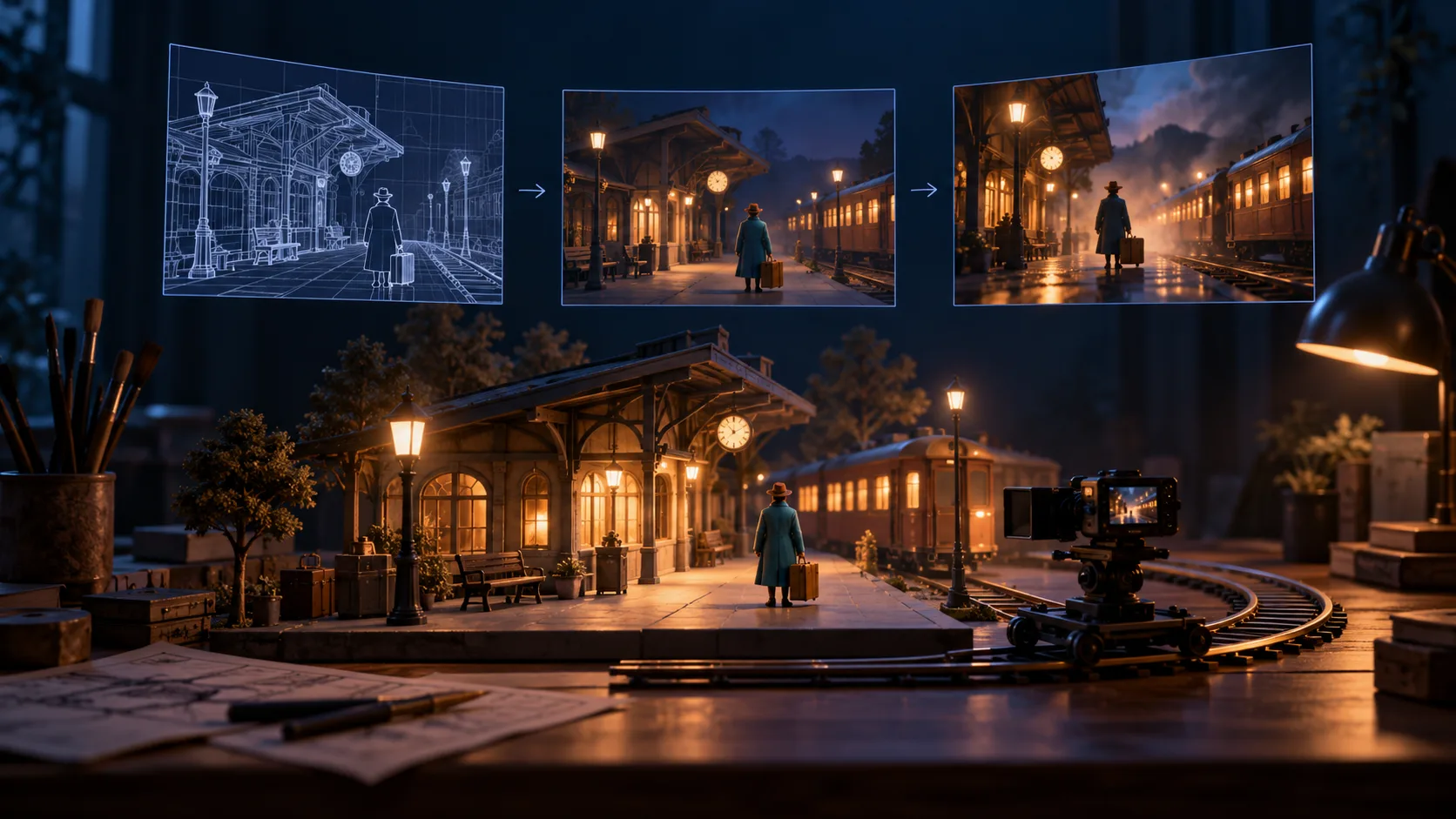
What does ArtCraft add to a Grok Imagine workflow?
The repository describes an editor that combines 2D composition, 3D staging, and image-to-video generation. Its tools include character posing, layered images, and transferring a character's identity onto a posed mannequin. The provider list confirms the Grok integration at a broad level, but does not identify a guaranteed model version or promise that every Grok feature is available in every build. Check the actual model selector before planning around a particular version. Source: supported providers and features.
The official site describes Image to Location for planning multiple shots in one environment, 3D compositing for arranging props and depth, and background removal for making reusable cutouts. Those are provider descriptions of the tools. Whether a generated result preserves the intended geometry still needs checking.
In practice, scene planning gives you something concrete to compare against a result. Instead of repeatedly asking for “the same station,” define where the bench, traveler, and platform edge belong. If the next image moves the bench, you can identify the mismatch. Visual planning makes the target clearer; it does not establish that the model will obey every constraint.
Where can you download ArtCraft?
Use the official download page, which links Windows and Mac installers and a browser version. It currently lists Windows 10 or newer, macOS 12 or newer, 8 GB RAM recommended, and 2 GB storage. Its quick start is to download, install, and sign in. The page displays v0.41.0; consult the current page rather than treating this version as permanent.
For release-specific files, use the project's GitHub releases. The repository also links development setup for people building from source, including Linux. A source-build option is a different commitment from downloading a supported desktop installer.
Before spending time setting up a larger project, confirm that your chosen client exposes the Grok workflow you need. A model listed in documentation is useful evidence of intended support, while your installed build and account determine the controls you can actually use.
Is ArtCraft free, and does that make Grok generation free?
Software access and generation costs are separate questions. ArtCraft's pricing page says the software can be used without an ArtCraft subscription, including with your own compute and third-party subscriptions. It also offers paid generation plans and one-time credit packs. That is not a promise of unlimited free Grok Imagine generations or of a particular allowance carrying over from another service.
Before generating, identify which provider is handling the request and where its usage is charged. Compare the selected duration, output settings, and displayed cost. Save that information with your accepted outputs so you can estimate the cost of a sequence rather than a single lucky take. We have not verified a Grok account-linking flow or subscription-credit transfer in the desktop application.
A small scene-planning exercise
The following is an original exercise, not a tested ArtCraft tutorial. Use the documented composition tools where available, and adapt it to your client.
- Define the shot. An adult traveler waits beside a suitcase on a quiet station platform. Choose a medium-wide view with the station door on the left and train tracks on the right.
- Write down three anchors. Keep the teal coat, tan suitcase, and amber station lamp fixed. These are the details you will inspect in each candidate.
- Plan a second angle. Move closer to the traveler while preserving the relative position of the door and tracks. Compare both compositions before generating a series.
- Approve a still first. Check the suitcase handle, silhouette, and background layout. Correct the visual brief before asking for motion.
- Add one action. The traveler lifts the suitcase and takes one step. Start with that short action before requesting a longer sequence.
A sample motion brief:
Use the accepted station image as the visual starting point. The traveler lifts the tan suitcase and takes one slow step toward the platform edge. Keep the teal coat, station doorway, lamp position, and lighting consistent. Hold the camera steady. Sound: quiet station ambience and one soft footstep.Check whether the hand contacts the handle, the case retains its shape, and the background remains coherent. If the shot fails, revise one instruction or simplify the action. These checks are useful even when switching between models: an accepted composition provides a common target, while each model's motion behavior still needs separate review. Our Grok Imagine prompt guide offers more ways to organize that brief.
Is ArtCraft open source?
Its site uses that phrase, but the repository's current license calls the software fair source and describes restrictions on resale, competing products, and removing certain project services or links. Publicly readable source does not imply unrestricted reuse. Consult that license when deciding how to use or modify the software.
ArtCraft is most interesting when the bottleneck is arranging the scene. For a straightforward generation, Gvid provides a separate Grok Imagine workflow; it does not include ArtCraft's scene editor. For first, middle, and last-frame controls, read our keyframes explainer, which addresses a different part of video planning.